


- REVIEWS
Camera Reviews 
More Reviews Mobile Reviews Photography Reviews - GALLERIES
- VIDEOS
- BUYER'S GUIDES
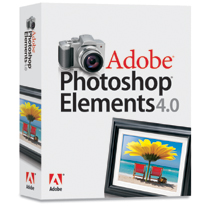
Adobe’s Photoshop Elements 4.0 (Windows & Mac); Is This Latest Version Worth An Upgrade?
 Is
a new upgrade on software merely an excuse for a new revenue stream for companies?
One could take that somewhat cynical view, but on the other hand I wonder if
it is any different than any new model of a product that is made attractive
by new and improved features. When we trade a still running car in for a new
model we expect it will have better performance and new beneficial features
the old one lacked. And so it goes with Adobe's Photoshop Elements 4.0.
It has many new features, and even more improvements in performance. Whether
or not these are worth the price of an upgrade depends more on the individual
user than anything else. If Version 4.0 provides more of what is needed and
will be used to achieve a better photographic experience, why not make the move?
Is
a new upgrade on software merely an excuse for a new revenue stream for companies?
One could take that somewhat cynical view, but on the other hand I wonder if
it is any different than any new model of a product that is made attractive
by new and improved features. When we trade a still running car in for a new
model we expect it will have better performance and new beneficial features
the old one lacked. And so it goes with Adobe's Photoshop Elements 4.0.
It has many new features, and even more improvements in performance. Whether
or not these are worth the price of an upgrade depends more on the individual
user than anything else. If Version 4.0 provides more of what is needed and
will be used to achieve a better photographic experience, why not make the move?
Adobe's Photoshop Elements remains a slimmed down derivative of the full
version of Photoshop with much of the professional media production capabilities
missing. Gradually, through the version upgrades, Elements has become a more
proficient application from a purely photographic perspective, making it not
just a more affordable choice for photographers, but one that makes photo correction,
adjustment, and editing easier and more effective than even with the latest
Photoshop CS2.
As both applications, CS2 and Elements, have evolved, they have become more
distinct and different from each other. Part of the impetus for differentiated
development is due, in large part, to the wildly increasing popularity of point-and-shoot
digital cameras, a market Adobe would of course like to include as part of the
Elements family of users. So in Version 4.0 there are more features for the
snapshooter. Fortunately, the tools that a serious enthusiast needs and wants
in Elements have not been slighted or ignored.
Indeed, they have been substantially enhanced. Those are the tools I will focus
on in this report.
 |
|
|
Mac And Windows XP
Adobe's Photoshop Elements 4.0 was first announced and released for Microsoft's
Windows XP, followed by the Apple Mac version. I waited until both release versions
were complete and evaluated both separately, although there is really only one
significant difference between them. The Windows version continues the use of
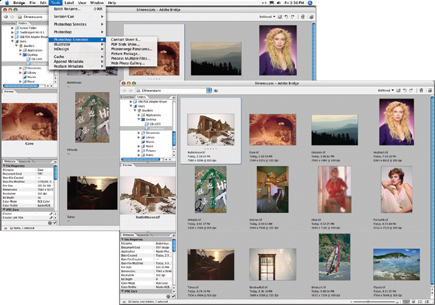
an image management module called Organizer; the Apple Mac version now has a
slimmed down version of Adobe Bridge, adapted from the current full version
of Photoshop CS2. The full price of Adobe's Photoshop Elements 4.0 for
Windows XP is $99, and the Apple Mac version is $89. Upgrade prices and more
detailed information is available on the web at www.adobe.com
or call (800) 492-3623.
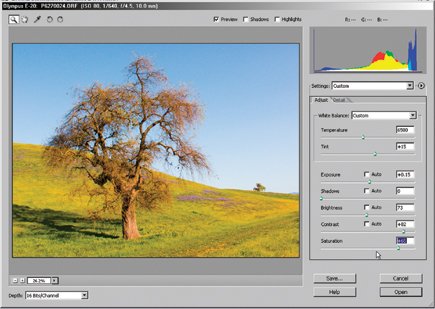
Camera Raw Upgrade |
|
 |
|
|
Features And Improvements In Elements 4.0
Adobe assumed that users want to "get started faster," so they created
a one-stop download that does not even require Elements to be running. And they
have also put an automated redeye removal function into the download process.
For the novice snapshooter the opening mechanics provide an advantage, but,
like Explorer in the Windows version, if you have already established your own
individualized way to handle and organize your digital photo files this method
can just get in the way.
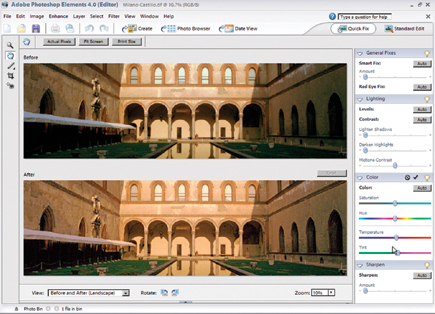
Before & After View |
|
 |
|
|
I was much more impressed by the larger effort Adobe has put into "making
your photos look their best." At least that corresponds fully with the
interests expressed in the feedback I obtain from Shutterbug readers. These
features include new capabilities and existing functions that have been refined
and made more effective. Some of the new features include a Magic Selection
Brush. This new brush has a bit of identification intelligence built-in and
combines with some manual Photoshop selection capabilities, all of which makes
selecting a complex image object easier and more efficient. Just pass the Magic
Selection Brush over the area you want selected, and the object/area outline
will be precisely identified. And, even if it does not select just what you
want perfectly the first time, leaving something out or including too much,
it is easily refined and corrected. A parallel tool is the Magic Extractor,
which includes a refined auto-edge-defringe function, and makes grabbing image
objects for making composite photos or adding an image object to a document
project like a greeting card much easier.
Photoshop and Elements have had Rotate as well as Transform utility tools that
make straightening images possible for some time now, but it required selecting
the right tool and sometimes guessing how many degrees of correction was needed.
Once straightened you had to crop the image so the frame included just the image.
Now all of these steps are included with automatic sensing of the horizon to
both level the image and automatically crop it to fit the frame.
Of all of the colors in photographic reproduction, skin tones are the most important.
They should be as close as possible to your subjects' features and should
not have a green or purple cast. However, the tools we have had to adjust skin
tones, like Color Balance and Hue/Saturation, do not lend themselves easily
to adjusting flesh tones if too pale, too ruddy, or pink. Elements now has a
tool with the ability to identify what the skin tone is by using a color picker
to sample what you want to adjust, and sliders that easily adjust the complex
colors in flesh tones on two logical dimensions of common differences.
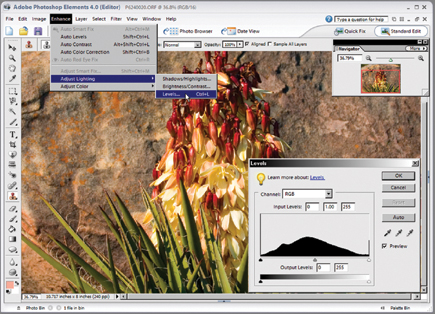
CS2-Like Adjustments |
|
 |
|
|


 FEATURED VIDEO


Get the Latest Photo Tips, News & Reviews from Shutterbug!







| Camera Reviews Other Reviews | |
Mobile Reviews Photography Reviews Columns | |
News | |
Features | |
How-To | |
Resources |
 © 2026 Shutterbug
AVTech Media Americas Inc., USA
All rights reserved