


- REVIEWS
Camera Reviews 
More Reviews Mobile Reviews Photography Reviews - GALLERIES
- VIDEOS
- BUYER'S GUIDES

Package Printing
Many Options In Photoshop
For those of you who do pro or semi-pro shooting, you probably already know about package printing. It's when you send a negative to a lab and ask them to make up an order from it that would be something like (1) 8x10, (2) 5x7s, (2) 4x5s, and (8) wallets, all from the same negative. The lab then prints that order on a special automated machine that uses roll paper. The special machine lays the order out on the roll paper so that the various pictures fit together as closely as possible so as to not waste the paper. Then the paper, with all the exposures on it, is processed all at one time. This results in all the pictures being exactly the same color balance and the same exact density. It is a "package" that is then die cut to yield individual prints. Photographers who shoot school, sports team, or family reunion pictures use this type of printing a lot. And, of course, many non-pros use this type of printing when they have a favorite picture that they want to share with family and friends. Since the great majority of package printing never involves pictures larger than 8x10, the 8x10 size is frequently referred to as a "unit." Therefore a unit can be: (1) 8x10, (2) 5x7s, (4) 4x5s, (8) wallets, or various combinations of those sizes. Labs will typically price out their package printing by quoting a unit price without any regard as to just what combination of sizes are printed on the unit. Now that many of us are into digital imaging and doing our own printing via our computers, using 8x10 ink jet printers, it is useful to know how to imitate package printing with our desktop darkrooms. |
|||
The Photoshop Way Creating A Package |
|||
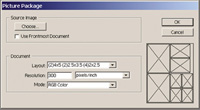
Then, go to File to Automate
to Picture Package (see #1). That will open |
|||
Combo Printing If you'd like more details on how to do this, send me an e-mail and I'll send the instructions back to you via e-mail. The instructions will be in an Adobe Acrobat file format as an attachment to my return e-mail. So, be sure that your ISP will allow you to receive attachments with your e-mail (some ISP services do not permit attachments) and be sure that you have the free "Reader" version of Adobe Acrobat installed on your computer (you can get it from www.adobe.com). Because these kinds of instruction sheets contain pictures, they take a little while to download to your computer if you are using 56K dial-up e-mail service. So, be patient when you receive the file. If you need help with your color printing problems, you can send an e-mail to me at: editorial@ shutterbug.net, or write to me care of Shutterbug. |



| ||
|
||

















 FEATURED VIDEO


Get the Latest Photo Tips, News & Reviews from Shutterbug!







| Camera Reviews Other Reviews | |
Mobile Reviews Photography Reviews Columns | |
News | |
Features | |
How-To | |
Resources |
 © 2026 Shutterbug
AVTech Media Americas Inc., USA
All rights reserved