Site Links
|
 |
 |
 |
Adobe Photoshop Camera Raw Plug In Easy, Direct And Speedy Access To Digital Camera Images
By David B. Brooks August, 2003
Adobe Photoshop Camera Raw Plug-In
| |
The Adobe Photoshop Camera Raw plug-in, once installed,
launches automatically when the File/Open command is
applied to a raw or TIFF image file made by a supported
camera stored on a drive or in a folder. A preview of
the image is provided, as well as an optional RGB Histogram
display overlay, both of which are interactive with
adjustments applied through the use of the plug-in’s
slider controls.
|
|
Just a few years ago, when
the digital camera was just beginning to catch on, image media storage
capacity was very limited and expensive. To conserve this small capacity
cameras were designed to output image files in lossy compressed JPEG
file format so the user could record a greater numbers of images, although
limited in quality, in one shooting session. As digital cameras have
evolved rapidly, and their cost has come down relative to quality and
resolution, the capacity of image file storage increased exponentially
with a dramatic reduction in cost per megabyte of storage. Development
in both camera and storage capacity now has made the use of JPEG compressed
file format for camera output less of an advantage, and in terms of
the lower level of image quality the cost of using JPEG is no longer
a justifiable option.
The TIFF And Raw
Advantage
The advantage of recording digital images in a lossless raw or TIFF
format rather than JPEG is not just to avoid the file compression by
throwing out some “redundant” image information. Compared
to raw or TIFF file format storage, JPEG reduces the sensor capture’s
bit depth, which may be 10, 12, or even 16 bits per RGB channel, to
8 bits per RGB channel, or 24-bit color. In addition to throwing out
supposed redundant information and much of the color variation captured
by the sensor recorded as bit depth, the final insult with some cameras
may be that the JPEG file output is also in sRGB color space, with its
limited color gamut.
In other words, if you have invested in a higher-end prosumer or professional-level
digital camera and want to advantage all of the camera’s potential
to reproduce high quality images, store the captures in raw or TIFF
file format. The resulting TIFF or raw format files will contain all
the image information captured by the sensor, and at the sensor’s
bit depth, as well as in the camera’s color space with an accompanying
profile describing that space.
|
| |
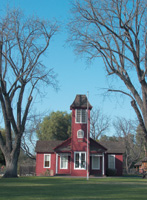
Subjects containing fine detail and gentle tone gradation,
as well as bold and delicate colors, were first processed
with the Adobe Photoshop Camera Raw plug-in then re-sized
within Photoshop to 12x16” at 240dpi. When printed
at that size the images were more than comparable to much
higher resolution scans of 35mm film images I’ve
recently made.
Photos © 2003, David B. Brooks, All Rights Reserved
|
|
Enter The Raw Plug-In
The purpose and function of the Adobe Photoshop Camera Raw plug-in is
not just the convenience of automatically recognizing a particular camera’s
signature proprietary format, and then opening a window with a preview
of its visual content in Photoshop’s workspace. It is to provide
the tools to adjust each dimension of image quality ideally applied to
the full depth of the information before the file is transferred from
its storage drive or folder to Photoshop’s workspace. This is a
profound advantage because making changes to brightness, contrast, and
overall color to an image file that is in 24-bit mode can and often does
exact the price of a reduction of information that is irretrievable. Making
the same changes to a high-bit file usually avoids that cost, and results
in a 24-bit RGB color image with superior color qualities, including more
variations of hue and smoother tone gradations.
Camera Raw Features
And Functions
Adobe’s Camera Raw plug-in functions on principles similar to those
involved in scanning and scanner drivers. Some of the tools and features
are also similar but more specifically related to the characteristics
of a digital camera. You launch Adobe’s Camera Raw plug-in from
within Photoshop 7.01 or Elements 2.0 by clicking on the File menu and
then Open and using the Browser window to find and select a camera file
from a drive or folder in which it is stored. If Photoshop recognizes
the file to be a supported raw or TIFF camera file, the Camera Raw dialog
box, which contains a low-resolution preview, is opened automatically.
In the bar at the top of the Camera Raw window the camera brand and model
which created the file is displayed, as well as the file name opened,
followed by the camera setting, which can include film speed, shutter
speed, aperture, and focal length.
|
| |
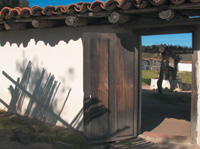
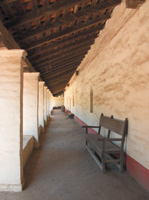
One
of the concerns some have that digital cameras have a
limited exposure latitude was dispelled in my tests shooting
subjects with a full subject brightness range from white
in sunlight to almost black in shadow, which with the
support of adjustment of the files using the Camera Raw
plug-in resulted in images with good detail across the
density range. This was particularly impressive to me
as I have photographed this mission complex near my home
in the past with both color transparency and black and
white films and found it a challenge to obtain both good
shadow and highlight detail.
|
|
|
To the left at the top of the
window are three cursor icons that support magnifying the preview, moving
the image portion displayed in the preview window, and an eyedropper to
provide a read-out in RGB values. To the left under the preview window
is a drop-down preview magnification selector and buttons to activate
the Preview and an RGB Histogram window overlay. The remaining four drop-down
selectors under the preview provide options to choose the color space
for output, and below it the bit depth of output, with output size and
resolution drop-down selectors.
Imaging Tools
The tools to adjust image quality characteristics previous to opening
the full image in Photoshop are in a vertical column of sliders on the
right side of the Camera Raw window. They are interactive with both the
preview image and the Histogram when it is displayed. The first two sliders
are directly related to the camera’s White Balance setting as it
affected capture. A drop down at the top defaults to “As Shot”
(which is reflected in the Temperature and Tint settings in values provided
by information recorded in the camera image file header), and provides
the option of selecting specific color temperature values. The Temperature
slider immediately below allows adjustment of the image color temperature
in Kelvin degree increments.
The Tint slider supports adjustment of hue on the Red/Green color axis.
The remaining sliders below, beginning with Exposure, which correlates
to f/stop values, supports adjusting the placement of density values to
a more ideal image appearance. Shadows allows gamut clipping to eliminate
any waste of space—that which is devoid of image information—contained
in what is displayed in the histogram at the lower density side. Brightness
shifts the image density values up or down to lighten or darken the image.
Contrast contracts or expands the image gamut to increase or decrease
the space between value differences.
|
|
Saturation increases or decreases
color intensity. Sharpness applies a filter function to enhance the space
defining tone differences. Smoothness is intended to reduce noise generated
by the selection of higher ISO speeds. All of these adjustments are reflected
in interactive changes in the preview image. It also includes a vertical
indicator when image data is pushed out of gamut, or clipped.
|
| |
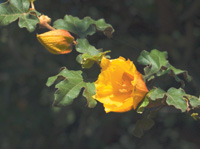
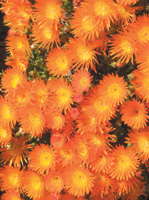
Springtime is doubly welcome encouraging photography outdoors
and more significantly providing the colors of blooming
flowers. The flowers also provide a particularly challenging
test for color with fidelity recording, especially in
their rich saturation and delicate differences in closely
associated hues and tints. The Camera Raw plug-in made
adjusting these color image attributes easy.
|
|
Test And Evaluation
Based On Using The Camera Raw Plug-In
I chose to use a prosumer camera with exposure control to capture a set
of subjects involving conditions that would provide a good basis to evaluate
the Adobe Camera Raw plug-in. I was also supported in this effort with
some early spring weather and obtained many more images than needed from
several shooting trips at short distances from my home base. Upon returning
from each outing I downloaded the full set of images directly to a new
folder on my computer.
I chose a wide variety of subjects for color and contrast variation. In
addition, as lighting conditions changed, I was afforded a range of effects,
and at different times of day obtained variations in the white balance.
I used the daylight setting rather than auto white balance. Also, in accordance
with the manufacturer’s recommendations, the capture options were
set to low contrast and soft sharpness after selecting raw file output
as well as maximum resolution and image size.
I began opening each image using the Camera Raw plug-in in Photoshop.
I then proceeded to adjust each as needed to achieve my perception of
how each subject should look on screen for eventual print output. With
nearly every image recorded I found some adjustment to white balance and
tint refined the images to more truly reflect the colors in the subject,
effectively removing any influence of any warmth or coolness in the illumination.
Of course if I had been shooting very early or very late in the day to
capture a “sweet light” effect I then might as well have chosen
to preserve or even exaggerate the warmness of the balance.
Then, using the Exposure, Shadows, Brightness, Contrast, and Saturation
slider controls I made any additional adjustments, much as I would in
a scanner’s software driver based on the preview previous to making
a final scan. After doing this with each image it would of course be opened
in Photoshop. I then opened the Histogram display first to see if I had
been able to accurately optimize the gamut for that image. If the image
did not fill the gamut, I would then open Levels and refine the adjustment.
Based on my perception of the image on screen in Photoshop I determined
if any more “tweaking” would be necessary to achieve an ideal
image adjustment. In most instances, some further refinement was possible
using Curves to improve detail in highlights and/or shadows, and I found
I could improve some subject colors using the selective color adjustment
of the Hue/Saturation controls.
After opening and adjusting several more images with the Camera Raw plug-in,
and based on my experience using Photoshop to adjust and refine photographic
images, I came to the conclusion that the access convenience and conversion
function of the Camera Raw plug-in are essential advantages, and that
the White Balance/Tint adjustment tools are invaluable.
But judging by the amount I had to refine and tweak the image once finished
in Camera Raw and opened in Photoshop, I might as well have used the program’s
more familiar and accurately refined tools. This can be accomplished without
any loss of image information because Camera Raw provides the option of
outputting at 16 bits per RGB channel, as well as standard RGB 8 bit per
channel mode. Of course this option is only available to those using Photoshop
7.01 and not Elements 2.0 users, and may not be an advantageous strategy
for those less experienced using Photoshop to do color correction.
|
|
Evaluation And Recommendation
For digital camera enthusiasts who are also Photoshop users, the Adobe
Photoshop Camera Raw plug-in provides a direct and efficient, automatic
access to raw and TIFF files created with a camera. It also provides a
distinct advantage to adjust the effect of the camera’s white balance
adjustment, as well as quite easy adjustment to most dimensions of image
quality, with some safety assured by the out-of-gamut warning provided
by the plug-in’s Histogram display. I would guess, particularly
for digital camera users who have been saving their image files in JPEG
format, they will likely find their camera records much more image quality
than they have been used to. On the basis of just those attributes the
Camera Raw plug-in is a very worthwhile investment at $99.
However, there are some attributes of the Camera Raw plug-in that I think
could be improved. I believe that the fact that my results with it were
less refined than making similar adjustments to images directly in Photoshop
were largely due to the limited screen size of the Camera Raw plug-in
window and its preview window. It would be a more effective tool if the
plug-in window could be scaled to fill more of the screen at higher monitor
resolution settings.
For more information and a complete list of camera models and proprietary
raw formats supported go to www.adobe.com/products/photoshop/cameraraw.html.
The plug-in is available as a single download from: www.adobe.com/store/products/master.jhtml?id=catPhotoshop.
The Olympus Camedia
E-20N Digital SLR
The camera used to produce the images to evaluate the Adobe Photoshop
Camera Raw plug-in was the Olympus E-20N, a true SLR 5.0-megapixel model.
Supported Cameras
Canon: EOS-1D, 1Ds, D60, D30; PowerShot 600, A5, A50,
S30, S40, S45, G1, G2, G3, Pro70, Pro90 IS
Fujifilm: FinePix S2 Pro
Minolta: DiMAGE 5, DiMAGE 7, DiMAGE 7i, DiMAGE 7Hi
Nikon: D1, D1H, D1X, D100; Coolpix 5700, Coolpix 5000
(with firmware Version 1.7)
Olympus: E-10, E-20N; C-5050 Zoom
|
 |
|
 |
|
|
 |
 |
 |
|