


- REVIEWS
Camera Reviews 
More Reviews Mobile Reviews Photography Reviews - GALLERIES
- VIDEOS
- BUYER'S GUIDES
Apple Power Mac G4 And Operating System OS X
Is This The Ultimate Photographers Desktop Setup
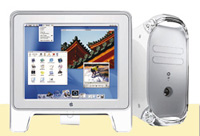
A new desktop computer model, a new operating system, and a new monitor model all at once is a rare occasion for a product test and review. Besides putting me on my toes by requiring me to learn new ways of working, I used the release of two graphics applications for the OS X operating system, Corel Graphics Suite 10 and Deneba Canvas 8, as my means of experiencing what digital photography will be like with these new products. On the hardware side, the new G4 tower CPU boxes are in the familiar rounded tower shape, now with a silver finish, and are offered in three configurations: 733MHz, 867MHz, and Dual 800MHz, with the latter two including SuperDrive, a combined CD-RW/DVD-RW drive. And, just as I was finishing this report Apple announced upgraded G4s replacing the models just cited, beginning with an 800MHz, and then a 933MHz replacing the 867MHz, and at the top a Dual 1GHz model. The only other significant changes are upgrades to the graphics card, now with an ATI Radeon 7500 for the 800MHz, and NVIDIA GeForce4 MX cards for the two top models. Apple has also abandoned offering CRT monitors, now providing the Apple Studio Display flat panel LCD in three sizes: 15", 17", and the 22" Cinema Display. For my test purposes Apple provided an 867MHz single processor G4 (with SuperDrive) and the 17" Studio Display. |
|||
OS 10.1 I very specifically requested that Apple include one of the flat panel LCD Studio Displays with the system loaned for testing. Apple is moving to an all flat panel LCD selection. The Apple Studio Displays are of the same LCD generation as the LaCie Photon 18 Blue monitor, which I reported on in the October 2001 issue of Shutterbug. In size, the viewable screen area of the 17" Studio Display is very close to that of the 19" CRTs. And, the graphics card that comes with the new G4 has an output connector for both the LCD Studio Displays and a CRT monitor. So I was able to use both and switch back and forth to do various digital photography processing activities. |
|||
The Mac Experience My first order of business was to set up the System Preferences to suit my "digital darkroom" use of a Mac. With OS X one of the first things you'll notice in the main screen interface is a block of designated space with a selection of large icons--it's called the Dock. It's where tools and applications you want to activate are accessed. One of these is an icon for System Preferences, which when clicked opens a window with four rows of icons representing personal, hardware, Internet, and networks, as well as the system functions. The first that I opened and set was the Displays dialog. The fact that the 17" Studio Display was recorded already is a reflection of the fact the Mac is fully "plug-and-play" and recognizes automatically any device plugged into and used with the system. Relative to photo processing, a related preference adjustment that is advisable is to set the Desktop color scheme to provide a neutral gray workspace, which in OS X is now a standard option. If the workspace around a photo image displayed on screen is colored it will skew the visual perception of the colors contained in the photo, something to be avoided if you want to edit color for ideal output. |
|||
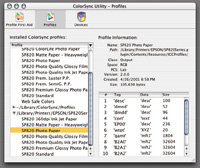
Also related critically to photographic color performance accuracy is Apple's color management system, Colorsync. Setting the profiles for use by Colorsync is now also immediately accessed through System Preferences. The dialog that pops up provides a three tab window, one of which has a new utility which inspects a suspect profile and will identify one that is corrupted and repair it. The tabs to set profiles and select the "engine" which runs the translation of color (CMM) is also selectable. I would first set it to use the Colorsync engine rather than the default Automatic setting. Then the profile selection tab window provides the ability to select any profile you have available in the Colorsync profile folder for input, internal (monitor), and RGB composite printer as well as CMYK proof printer output. What is not apparent is that OS X includes a new full version upgrade to Colorsync 4.0, which is now also fully "plug-and-play." Anytime you connect a device like a USB digital camera the firmware in the device includes a profile Colorsync that will automatically associate the profile with the device and make it active as the input profile. Calibrated Monitor Profiles Software Installations Thus equipped, I was able to perform a typical range of photographic and digital darkroom tasks closely parallel to the work I was doing to evaluate the printer, scanner, and digital camera using my personal and familiar previous model G4. I also used some new versions of Corel and Deneba applications running under OS X. Evaluation And Recommendation
Now that there are even newer upgraded G4s, the one I tested would be indicative of superb digital darkroom performance from any three of the models now offered. Compared to my previous generation G4 these latest models provide quiet, smooth, reliable, and efficient operation. The only waiting involved was due to inputting high-resolution scans and making large, high-resolution prints, but both of these functions were done more rapidly compared to my personal and older G4. In addition, once I got the hang of OS X, its new interface provides many more direct and easy methods of working, particularly with the Dock providing a cleaner and more direct access to applications, files, and OS functions. Working with the Corel PHOTO-PAINT and Deneba Canvas applications, which I had only used in the past on a Windows PC, I was pleasantly surprised to find both of these powerful graphics applications were much easier to learn and use than I had previously experienced. Deneba Canvas in previous Windows versions combines so many graphic, publishing, and photography tools and capabilities in a single interface that it was dauntingly complicated. But the OS X version is more streamlined and there is a greater level of functional logic and readier identification of the tools, making orientation and the work process go quite easily. Corel has also streamlined their OS X version of PHOTO-PAINT, which has made it more efficient, plus the interface design is easier to use. For example, the color management setup is laid out graphically with symbols for each of the devices. All the profiles for a printer or scanner that are on file are listed for immediate selection--neat! Working with scanning and editing in Photoshop, and printing using the Classic OS 9.2 with this new G4, provided the most direct comparison between it and my previous generation G4. The new one is decidedly faster and more efficient. For photographic computing which involves usually rather large files, I believe much of the difference is due to the faster 133MHz bus and RAM chips of the new machine compared to the 100MHz bus and chips in the older version. So there may not be all that much of a performance boost between the 867MHz machine I tested and the just released 933MHz, which also has a 133MHz bus and RAM chip speed. As I described earlier I used the new Apple 17" Studio Display for most of the testing of the G4 867 Power Mac, switching over to one of my 19" Sony displays for a short time for the sake of comparison. For most of my work I found the Apple LCD provides some distinct pluses, particularly in sharpness and crispness of detail, an obvious photographic advantage, particularly for retouching. However, I could not perform color correction, particularly setting up scans, as accurately and as predictably as with the CRT. So, my ideal would be to use both an Apple 17" LCD and 19" CRT side by side. That may seem a bit luxurious, but the total cost is no more than what the best 21" CRT costs, and you have even more total screen real estate. My own actions, having been a died-in-the-wool PC Windows user for most of my computing life, may be the best kind of recommendation. As I write these last few words my last PC is exhibiting signs of morbidity, so today I ordered a new G4. I won't replace the PC, but to cover Windows applications will run Virtual PC and Windows 2000 on one of my Macs. SPECIFICATIONS Processor
Memory
-512MB DIMMs (64-bit-wide, 256-Mbit) Storage
-60GB 7200-rpm Ultra ATA -80GB 7200-rpm Ultra ATA
-SuperDrive (combination DVD-R/CD-RW drive; writes DVD-R discs at 2x speed, reads DVDs at 6x speed, writes CD-R discs at 8x speed, writes CD-RW discs at 4x speed, reads CDs at 24x speed) -DVD-ROM/CD-RW Combo drive (build-to-order option; reads DVDs at 8x speed, writes CD-R discs at 12x speed, writes CD-RW discs at 8x speed, reads CDs at 32x speed)
-Support for up to two internal ATA drives -Support for up to three internal SCSI drives -Support for a combination of internal SCSI and ATA drives Graphics support
-NVIDIA GeForce4 MX graphics card with 64MB of DDR SDRAM and ADC and VGA connectors; supports digital and analog resolutions up to 1920 by 1200 pixels
Expansion
Communications
Audio
Speakers
MIDI devices
Size and weight
Apple Prices: 800MHz
$1599; 933MHz $2299; Dual 1GHz $2999; 17" LCD Studio Display $995. For
more information go to your local Apple store, or visit their web site
at: www.apple.com. |

| ||
|
||


 FEATURED VIDEO


Get the Latest Photo Tips, News & Reviews from Shutterbug!







| Camera Reviews Other Reviews | |
Mobile Reviews Photography Reviews Columns | |
News | |
Features | |
How-To | |
Resources |
 © 2026 Shutterbug
AVTech Media Americas Inc., USA
All rights reserved