


- REVIEWS
Camera Reviews 
More Reviews Mobile Reviews Photography Reviews - GALLERIES
- VIDEOS
- BUYER'S GUIDES
Raw Converter Software; From Adobe, LaserSoft, Bibble Labs, & DxO Labs
A dozen or so years ago digital cameras were just becoming a reality, although
still pricey and limited in utility. Some of these cameras offered output file
format choices that usually included JPEG and sometimes TIFF, and rarely raw.
You chose the TIFF option as an option to the lossey JPEG. When the raw option
was first offered it was in the standard .RAW format that could be opened with
most image-editing applications. It contained the unprocessed data from the
camera sensor. Although there was some incentive to get the most out of a digital
camera then by using either TIFF or raw, the cost and lower capacity of memory
cards often precluded their use. With early CompactFlash or SmartMedia memory
cards, the small storage space only allowed a very few exposures.
As later model cameras began offering sensor chips with more resolution, producing
even larger uncompressed files, and larger capacity memory cards became available,
all of the manufacturers chose to develop and use their own proprietary non-lossey
compression strategy as their raw save option. This required each manufacturer
to develop and include software that could decode their new proprietary raw
file format. Because the software was included in the price of the camera (although
some charge extra for expanded utilities) it was an extra cost. In my experience,
this proprietary raw software apparently received a somewhat limited budget
priority because in nearly every example it was nothing but a bare-bones utility
that offered little more than access to the raw file data.
 |
|
|
Intended or not, the state of digital camera raw conversion became an open
invitation to software developers to step into
the void and offer something more efficient, powerful, effective, and easier
to use than the free utility shipped with digital cameras. Adobe was virtually
obliged to move quickly and develop a plug-in Camera Raw capability that would
support most of the different makes and models of digital cameras. If they didn't
move on this and provide a free, convenient access for photographers to bring
their raw images directly into Photoshop, one of the many third-party developers
who make plug-ins for use with Photoshop would step into the breach and jeopardize
a selling feature Adobe could use to its advantage.
The first of such companies, in fact, to offer raw converters were those who
had software for scanners and digital backs. LaserSoft, with their SilverFast
plug-in driver for scanners was already partway there; their SilverFast DC worked
with digital camera JPEGs. Others were not far behind, including companies like
Phase One with an adaptation of their software developed for their own digital
backs for medium format cameras. Other independent software developers like
Bibble Labs and DxO Labs have taken the challenge and approached it from different
perspectives, offering their own take on what will serve photographers most
effectively.
 |
|
|
Four Different Software Solutions
I chose four different software options for digital camera raw conversion which
offer both comprehensive capability and moderate cost (excepting Adobe's
Photoshop CS2, in which Camera Raw is an included feature). To test I chose
raw files made with digital SLR cameras that have comparable price and megapixel
output: Canon's EOS Digital Rebel, Nikon's D70, and Konica Minolta's
Maxxum 7D. I already had the use of a Canon EOS Digital Rebel; I enlisted the
support of a friend with a Nikon D70; and borrowed a Maxxum 7D from Konica Minolta.
I arranged a studio test with electronic flash using a subject with two different
color references. I made a series of bracketed exposures with each camera using
the same focal length setting and aperture and varying the flash output to provide
a bracketed range of different exposures. I then used the Canon and the Konica
Minolta to photograph both the same and different subjects myself, and my friend,
James Chen, supplied some raw files made with his Nikon D70 in Beijing, China.
 |
|
|
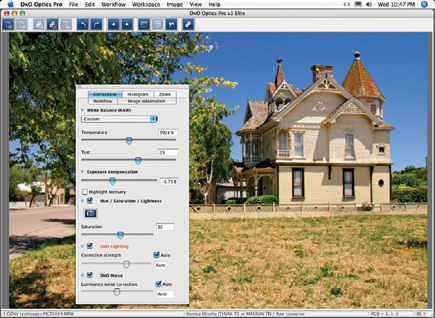
All of these files were processed with Adobe's Photoshop CS2 Camera Raw, LaserSoft's SilverFast DC VLT (Virtual Light Table), Bibble Labs' BibblePro 4.3, and DxO Labs' Optics Pro Elite 3.0 installed on an Apple Mac G5. I made it a point to work with each software application separately on different days, without referring to the image results produced by the other applications. Each set of processed files were then saved as TIFF files in their own folders. After this stage of the processing was complete, I opened each file in Adobe's Photoshop Elements 3.0 and made any minor editing adjustments needed to produce an optimum result, then saved the result as a copy file so the original would be preserved for reference. Finally, a set of proof prints were made of the finalized files from which I chose the images that are included to illustrate this report.
 |
|
|
Evaluating The Processing Experience And Image Results
It has been my practice over the last 30 years of reporting to avoid making
head to head comparisons of products. For this report, I must admit, curiosity
just got the best of me. And because doing this kind of test and evaluation
was so completely new, I really did not have any expectations even as I did
the work, as I did not want to involve even an unconscious, unintended bias.
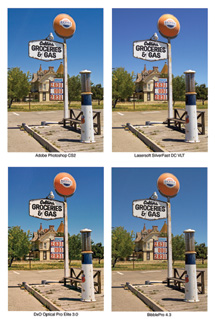
So when I laid out the final images side by side I was very surprised by the
results. If the file names were not unique (and included an identification of
both the camera and the software used) it would have been very easy to get them
mixed up. There was that little difference between them.
Does that mean there are no significant differences between the three cameras
I used for the tests? Not at all--each has its own raw character. For instance,
the Konica Minolta Maxxum 7D files were a bit contrastier and more saturated
than either the Canon or Nikon. It was evident that each brand is subtly distinct
in how it reproduces color. However, once converted and adjusted to the same
level of maximum black, white, and mid-gray point values, those inherent distinctions
became indistinguishable.
 |
 |
||
|
|
Likewise, I found with each software conversion option, whether Camera Raw
or BibblePro 4.3, I could adjust the image very close to the same maximum white
and black as well as close to the same mid-gray (brightness). However, once
I had made all the optimal adjustments and saved the file as a TIFF, there were
some subtle differences when I opened each image with Adobe's Photoshop
Elements 3.0. Some of the files converted and adjusted with Camera Raw, SilverFast
DC VLT, BibblePro 4.3, and Optics Pro Elite 3.0 required slightly different
amounts of tweaking with Photoshop Elements to be optimal for printing.
For instance, even though Camera Raw has its own histogram to optimize image
levels, when the Adobe files were opened and checked with Levels in Photoshop
Elements the image required further tightening of the gamut. The files converted
and adjusted with SilverFast DC VLT once opened in Photoshop Elements required
either no tweaking or very little. The files converted and adjusted with both
BibblePro 4.3 and Optics Pro Elite 3.0 were in between, usually requiring just
very little fine adjustment to be optimal.


 FEATURED VIDEO


Get the Latest Photo Tips, News & Reviews from Shutterbug!







| Camera Reviews Other Reviews | |
Mobile Reviews Photography Reviews Columns | |
News | |
Features | |
How-To | |
Resources |
 © 2026 Shutterbug
AVTech Media Americas Inc., USA
All rights reserved