


- REVIEWS
Camera Reviews 
More Reviews Mobile Reviews Photography Reviews - GALLERIES
- VIDEOS
- BUYER'S GUIDES
Printing Large: How Big Can You Go? A Sampling Of Resampling Programs
As the price of wide format photo printers like the ones offered by Epson, Canon, and HP continues to come down, more and more digital photo enthusiasts are adding them to their digital darkrooms. For less than $400, you can now print photo quality 11x14" images (actually, up to 13x19), saving money and time without sending these prints out to a photo lab.
The Problem
One of the biggest challenges to printing large images is getting a quality
enlargement. Sure, you can print any image at 13x19", or even larger,
but is it going to look good? Without the proper technique you're liable
to end up with a pixely (that's a technical term for "gee that's
one ugly digital picture!") mess that isn't going to look anything
at all like the original photo. So, how do you take that digital image from
your 4 or 5-megapixel camera and turn it into a large scale printed work of
art?
The Solution
Luckily today's software makes it easier than ever to get a quality enlargement.
If you use Photoshop or Photoshop Elements, you have a wealth of choices for
enlarging your photos. Most of the plug-ins discussed here also work with other
image-editing programs that support the Photoshop plug-in standard. Examples
of this are Microsoft Digital Image Pro and Jasc PaintShop Pro. In addition
to the built-in resizing feature, popular options include Extensis pxl SmartScale,
LizardTech Genuine Fractals, and Shortcut PhotoZoom, along with Fred Miranda's
Stair Interpolation Pro.
Using What Adobe Gave You
Photoshop and Photoshop Elements have always supported image re-sizing and have
typically done a better job of it than most of the other applications available.
In fact, unless you've wanted to print really big--and I'm
talking poster size or larger--the image re-size function in Photoshop
will do the trick quite well. In order to re-size your photo in these applications,
simply select Image>Image Size. You'll see the dialog box in #1.
 |
|
|
There are two key options in this dialog that will control the quality of your enlargement (or delargement--yet another technical term. This one means reducing the image). The most important of these is the Resample Image option shown in #2.
 |
|
|
The second option to look at is the resolution. If you're enlarging
an image, it's safe to decrease the resolution. Why? Since larger photos
(or any other artwork for that matter) tend to be viewed further back, lower
resolution files give the same appearance of detail as the higher resolution
version of the same file at a smaller size. For a 13x19" print, I'll
typically lower the resolution to 240dpi. The other advantage of lowering the
resolution is that less physical re-sizing of the image is needed.
To re-size your image with Photoshop, start out by selecting Image>Image
Size. If you'll be enlarging the image, change the resolution to 240dpi.
Make sure the Resample Image check box is checked and select Bicubic Smoother
from the drop-down list. Next, select the critical dimension for your image
size--either height or width. Click OK and Photoshop will re-size the image
as requested. Need your image to be a specific size, like 11x14 or 16x20? The
easiest way to accomplish this is by using the Crop tool. Did you know that
you can set specific measurements in the Crop tool? If I want a 16x20 print,
I set those dimensions, shown in #3, and then drag out the crop area as large
as possible. This lets you easily define the area of the image to keep and gives
you the exact dimensions you want for the final print.
 |
|
|
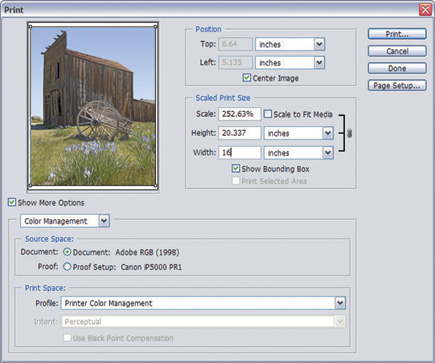
The other approach to re-sizing is through the Print With Preview dialog shown in #4.
 |
|
|
Add-On Options
All of the following options claim to do a better job at enlarging images than
Photoshop's own tools. Prices range from the very affordable Stair Interpolation
Pro (SIPro) #5 by Fred Miranda ($19.90) and Shortcut PhotoZoom, about $50 to
the high end LizardTech Genuine Fractals ($159) and Extensis pxl SmartScale
($199.95).
 |
|
|
SIPro works by using a popular method claimed by many to give better results.
These folks claim that enlarging an image in 10 percent increments gives better
results than re-sizing in one step. In earlier versions of Photoshop this was
certainly true but the new Bicubic Smoother re-size gives results just as good.
If you use an older version of Photoshop, Photoshop Elements, or one of the
compatible image-editing programs, I highly recommend this plug-in as a cost
effective way to re-size your images.
| |||||||||
|

| ||||||||


 FEATURED VIDEO


Get the Latest Photo Tips, News & Reviews from Shutterbug!







| Camera Reviews Other Reviews | |
Mobile Reviews Photography Reviews Columns | |
News | |
Features | |
How-To | |
Resources |
 © 2026 Shutterbug
AVTech Media Americas Inc., USA
All rights reserved