


- REVIEWS
Camera Reviews 
More Reviews Mobile Reviews Photography Reviews - GALLERIES
- VIDEOS
- BUYER'S GUIDES

HP’s Photosmart Pro B9180; HP Tosses Its Hat Into The Fine Art, Pigment Ink Printer Ring
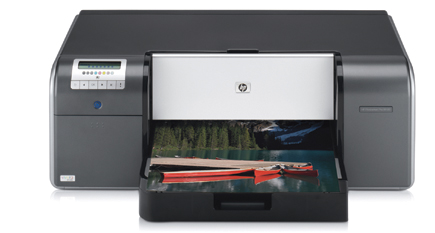
First announced in February and now becoming available, the new HP Photosmart Pro B9180 is one of two new competitors to the Epson R2400 (the other being the Canon iP9500). Although 13x19 inkjets have been available for some time, including the highly regarded Photosmart 8750, the B9180 is the first pigment ink photo printer from HP, and the first Photosmart printer to bear the Pro label.
In this review, I'll look at setup and use, output, and media choices. As you'll see, the B9180 is a major new product that is going to have an impact on the photo market, and is also a sign of what's to come.
 |
|
|
Setup
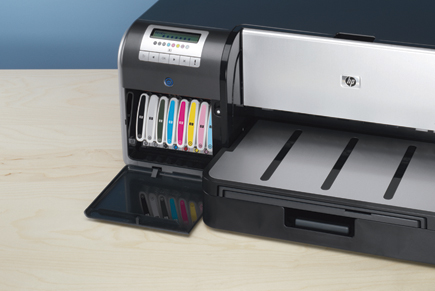
The B9180 uses eight individual ink tanks, including a photo black, matte black, and light gray to help produce neutral black and white prints. All inks are installed at all times, avoiding the need to swap photo and matte blacks when changing paper types. Cyan, magenta, yellow, light cyan, and light magenta round out the ink selection. Ink cartridges are a generous 27ml, and list for $33.99.
 |
|
|
The printer will take several minutes to prime the ink lines and then prompt you to install four print heads--each head serves two colors. Unlike Epson, both HP and Canon have user-replaceable print heads, which has its advantages and disadvantages. In theory, the HP and Canon method is better because you avoid expensive repairs when a print head needs to be replaced. On the other hand, Epson's print heads typically last as long as the printer, so replacement isn't something most Epson owners need to deal with.
 |
|
|
After the print heads have been installed the printer continues the initialization process and prompts you to load a package of provided glossy paper, which is used to check the alignment and calibration of the printer. The B9180 is unique in this category by including a closed-loop calibration system--something previously found only in large format printers costing significantly more.
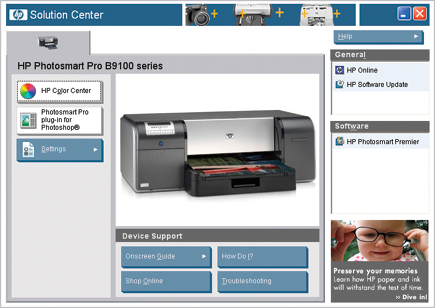
Software installation for both Macintosh and Windows is straightforward. HP installs printer drivers, paper profiles, and printer utilities to maintain the printer as well as calibrate and add new paper types. HP also provides a Photosmart Pro plug-in for Photoshop that I'll cover in a bit. Finally, Mac users get HP's Photosmart Studio, while Windows users get HP's Photosmart Premier. Both are capable image browsers, with basic editing controls and options for creating projects like greeting cards and calendars.
 |
|
|
The final step is to connect the printer to your computer. HP includes both USB 2.0 and Ethernet ports, which is unusual, but welcome, in a printer at this price point.
Paper is handled through two different paths. The first is a tray that holds up to 200 sheets of paper from passport to 13x19 in size. The second is a specialty media tray for single sheets of media up to 1.5mm thick, which you'll use for fine art papers, canvas, and other materials that need a straight feed, as well as paper longer than 19", the maximum allowed in the tray. Unlike the Epson printer, the HP has no roll adapter or cutter, so you're limited to sheet media.
You'll need a fair amount of space for this printer. At 26" wide and 28" deep, it's not small. And, if you plan to use the specialty media tray, you'll need enough space behind the printer for your paper to feed.
 |
|
|
Using The B9180
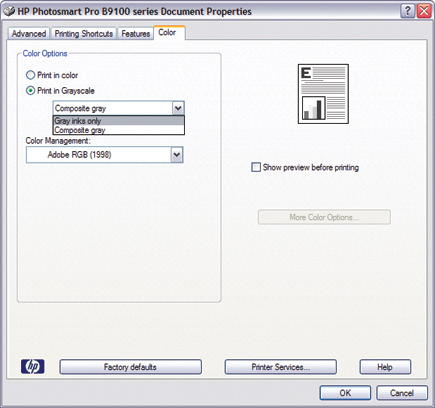
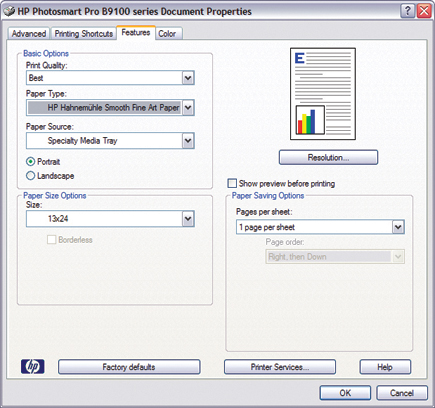
Once you've installed and calibrated the printer, it's ready for output. If you've used HP printers in the past, most of the options will be familiar to you, with selections for color management, paper size and type, as well as new choices for printing gray scale images with all colors, or only using the gray/blacks.
| |||||||||
|

| ||||||||









 FEATURED VIDEO


Get the Latest Photo Tips, News & Reviews from Shutterbug!







| Camera Reviews Other Reviews | |
Mobile Reviews Photography Reviews Columns | |
News | |
Features | |
How-To | |
Resources |
 © 2026 Shutterbug
AVTech Media Americas Inc., USA
All rights reserved