


- REVIEWS
Camera Reviews 
More Reviews Mobile Reviews Photography Reviews - GALLERIES
- VIDEOS
- BUYER'S GUIDES

Output Options; Improving Your Prints And Saving Your Sanity
"I have calibrated my monitor with SpyderPRO and am very happy with the results. The problem I am having is in the printing. I have a Canon i960 printer and use their best paper and ink. My finished prints are muddy, not clear and have a slight magenta tint when compared to the monitor. I have talked to Canon a number of times and have tried all of their suggestions, but to no avail."
"I enjoyed your article on ColorPlus in eDigitalPhoto. After reading the article, I wondered if once the computer monitor color calibration is completed, are any adjustments necessary to the printer settings? Or will the printer automatically adjust to the new monitor profile?"
 1 |
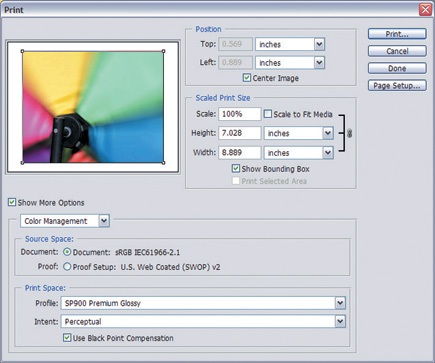
Coincidentally, the answer to both of these questions is very similar. By default, Photoshop, as well as Photoshop Elements, lets the printer handle the color matching. In many cases, this results in the problem mentioned in the first question--muddy prints. The fix, while easy, isn't always intuitive. In fact, it took Tim Grey and me 15 pages to cover it completely in our new book, Photo Finish: The Digital Photographer's Guide to Printing, Showing, and Selling Images. You need to turn off color management options within the printer; otherwise your photos are being converted twice.
 2 |
Leave The Driving To Us
Most of the ink jet printers available now have features to optimize image printing.
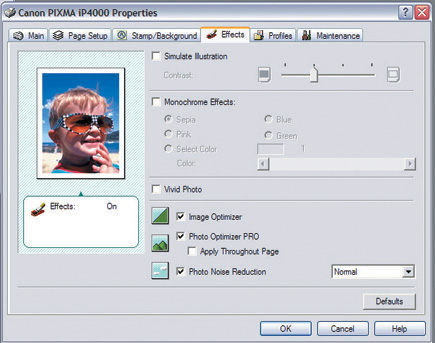
Epson calls theirs "Photo Enhance" (#1), while Canon refers to this
as Effects (#2). In essence, you're letting the printer driver handle
all color management for you. This is fine and dandy if all you're interested
in is a quick print-out or two, or if you're printing directly from the
camera or memory card. If you've taken the time to edit your image into
a masterpiece though, the last thing you want is to have the printer assume
it's smarter than you are.
 3 |
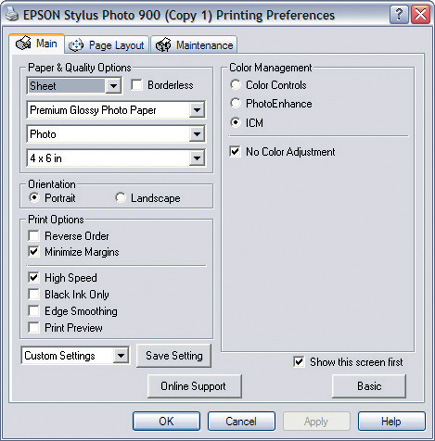
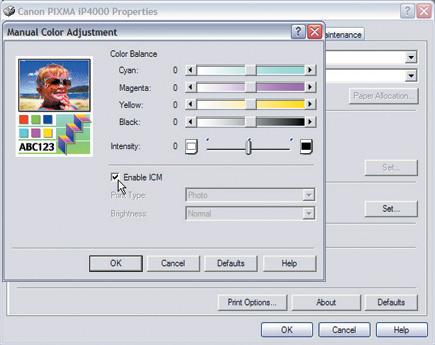
As I mentioned earlier, the fix is easy but not obvious. We actually need to tell the printer and the application what we want. In the case of the printer, we set the driver to ICM (Integrated Color Management), and then check the "No Color Adjustment" box (#3) on Epson printers, and on Canon printers you'll select Color Adjustment Manual, then click the Set button and select Enable ICM (#4). This ensures that the printer will take whatever the application sends it with no enhancements or changes.
 4 |
| |||||||||
|

| ||||||||

















 FEATURED VIDEO


Get the Latest Photo Tips, News & Reviews from Shutterbug!







| Camera Reviews Other Reviews | |
Mobile Reviews Photography Reviews Columns | |
News | |
Features | |
How-To | |
Resources |
 © 2026 Shutterbug
AVTech Media Americas Inc., USA
All rights reserved